
Too many tabs open on your mobile? Discover how Group and Save Web Pages can help you organise your favourite pages in one place, access them quickly, and make browsing much easier. Let’s see how it works!
Group and Save Web Pages on your mobile and keep your favourite pages organised in one place. You can access them quickly and make browsing much easier. Let’s see how it works!
Too many tabs open on your mobile? This simple method can help you organise your favourite pages and keep them together in one place.
First, open a few web pages.
(For example: some entertainment-related pages, some news-related pages, and some cooking-related pages.)
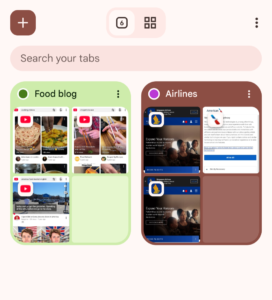
Group and Save Web Pages on your mobile and keep your favourite sites organised in one place. Follow these 8 simple steps to make your browsing easier.
Now, let’s see how you can save all the cooking-related pages together under one name.
8 Simple Steps to Group and Save Web Pages
First, open a few web pages.
(For example: some entertainment-related pages, some news-related pages, and some cooking-related pages.)
1. On your mobile, you will see a square box in the top-right corner. First, tap on it.
2. Next, long-press one of the cooking-related tabs and drag it into another “Cooking” page.
3. Then, a pop-up will appear. Enter a name of your choice. You can also select a colour of your choice. Finally, tap the “Done” button.
4. After that, drag the rest of the cooking-related pages in the same way. That’s it!
5. As a result, all the sites you want will be saved together on your mobile under one name.
6. In addition, you can add new pages later. If you no longer need any pages, you can drag them out and remove them.
7. Next, open any one of your favourite pages that you have already grouped under your favourite name and colour. You will see the page icons at the bottom of the screen. Simply tap any icon to go directly to that page.

8. Finally, you can add all your favourite sites to one group and easily see their page icons at the bottom. You can also create multiple groups for different categories. This makes it easier to organise your favourite sites and simplify your work.
🎥 Watch the video: Group & Save Your Favourite Tabs in 8 Simple Steps!
It’s that simple, right?
Try it once and see. It will be very useful!
Just 8 simple steps can make the whole process much easier. Try it now and see how simple it can be!
1 thought on “Group and Save Web Pages: 8 Simple Steps for Easier Browsing”