
Show tap indicators on Android to see exactly where you are touching your mobile screen. The built-in Show Taps feature displays a small visual indicator whenever you touch the screen.
This feature can be very useful when playing mobile games, demonstrating something on your phone, recording tutorials, or helping children use a tablet or mobile.
The best part is that you don’t need to install any additional application. You can enable this feature directly from your Android device settings.
However, there is one important step before you can access it. You need to enable Developer Options on your phone.
So, let’s watch the quick video tutorial and learn how to show tap indicators on Android in just a few simple steps.
How to Enable Show Taps on Android
A tap indicator is a visual mark that appears on your screen whenever you touch it.
For example, if you tap on an icon, you will see a small indicator at the exact location where you touched the screen.
This can be especially useful when someone is watching you use your phone because they can clearly see where you are tapping.
Now, let’s see how to enable it.

First, Enable Developer Options
Don’t worry. You don’t need any technical knowledge to do this. Just follow these simple steps.
Step 1: Open Device Settings
First, open the Settings app on your Android mobile.
Step 2: Tap on About Phone
Next, scroll through the Settings menu and tap on About phone.
Depending on your mobile brand and Android version, this option may have a slightly different name or location.
Step 3: Find Build Number
Now, scroll down and look for Build number.
Once you find it, get ready for the next step.
Alt text: Android Build Number for enabling Developer Options
Step 4: Tap Build Number 8 Times
Now, tap on Build number eight times continuously.
After tapping several times, your phone may ask you to enter your screen lock PIN, password, or pattern.
Enter it if requested.
Finally, you should see a message indicating that Developer Options have been enabled.
That’s it! You have successfully activated Developer Options.
Now comes the interesting part.
How to Enable Show Taps on Android
Once Developer Options are enabled, you can easily find the Show Taps option using the Settings search function.
Step 5: Go Back to Settings
Now, go back to the main Settings screen.
Step 6: Use the Search Option
Next, tap the Search option in Settings.
In the search box, type:
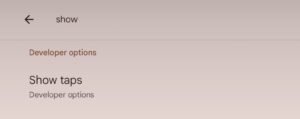
Show Taps
You should see the Show Taps option in the search results.
Step 7: Select Show Taps
Now, simply tap on Show Taps.
Your phone should take you directly to the location where this option is available.
This is much easier than manually searching through all the Developer Options.
Step 8: Enable the Toggle
Finally, you will see a toggle next to Show Taps.
Simply turn the toggle ON.
That’s it!
Now touch anywhere on your mobile screen.
You should see a small tap indicator appear wherever you touch the screen.
How Cool Is That?
Now you can clearly see your touches on the screen.
For example, if you touch the left side of the screen, the indicator will appear there. If you move your finger and touch somewhere else, you will see the indicator at the new location.
This makes it much easier to understand exactly where someone is touching the screen.
Why Is Show Taps Useful on Android?
There are several situations where this simple feature can be useful.
1. Playing Mobile Games
If you enjoy playing games on your mobile, the tap indicator can help you see exactly where you are touching the screen.
It can also be useful when demonstrating game controls to someone else.
2. Recording Tutorials
If you create mobile tutorials or technology videos, Show Taps can make your demonstrations easier to understand.
When viewers watch your screen, they can clearly see where you are tapping.
3. Teaching Children
This feature can also be useful for children who use smartphones or tablets.
For example, if a child is learning to draw on a tablet with their little hands, the tap indicator can help them understand where their fingers are touching the screen.
4. Demonstrating Apps
If you are showing someone how to use a particular app, the tap indicator makes your instructions clearer.
Instead of simply saying “tap here,” the person watching can actually see the exact location of your touch.
Also, remember that Developer Options contains many advanced settings. If you are not sure about an option, it is better not to change it unnecessarily.
Want More Useful Mobile Tips?
If you enjoy discovering simple features that can make your mobile experience easier, you may also like our guide on Group and Save Web Pages on Mobile.
It shows you how to organise your favourite web pages and access them quickly from your mobile.
Final Thoughts
So, there you have it!
With just a few simple steps, you can show tap indicators on Android without installing any additional application.
First, enable Developer Options by tapping Build number eight times. Then, go back to Settings, search for Show Taps, open the option, and turn the toggle ON.
Now touch your screen and watch the tap indicator appear!
It can be useful for mobile gaming, screen demonstrations, tutorials, teaching children, and many other situations.
How Show Taps Works on Android
Just try it once and see how it works on your mobile.
Enjoy exploring the technology already available on your device!